Getting Started
This guide walks you through installing B-Roll Me and running your first script analysis. You can get started two ways: bring your own AI API key for full control, or use credits for a simpler setup.
1 Download and Install
Head to the Download page and grab the installer for your platform:
- • macOS: Open the .dmg file and drag B-Roll Me to your Applications folder.
- • Windows: Run the .exe installer and follow the prompts.
2 Choose Your Mode
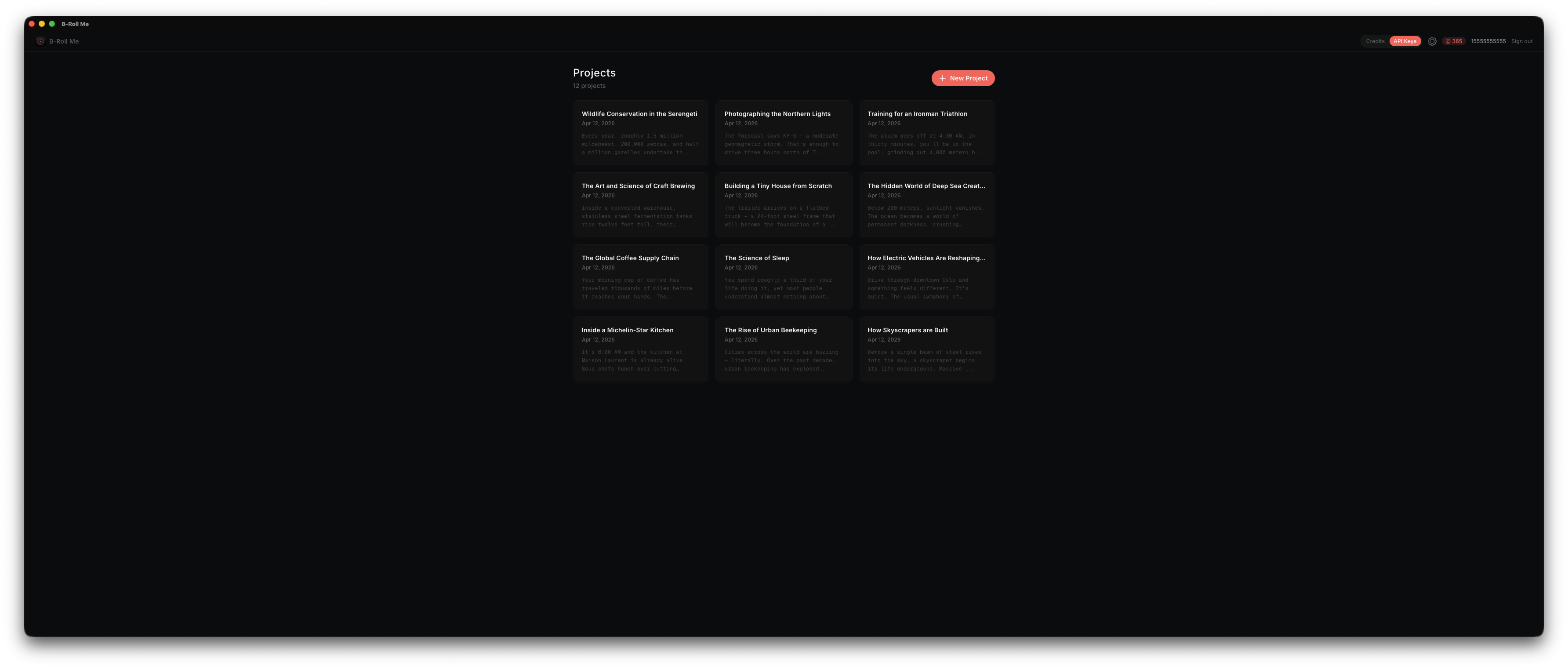
B-Roll Me offers two ways to power AI analysis. You'll see a Credits / API Keys toggle in the app header — pick the mode that suits you best:
Credits Mode
Sign in with your phone, purchase credits, and start analyzing. No API key setup needed. Best for getting started quickly.
BYOK Mode (Bring Your Own Key)
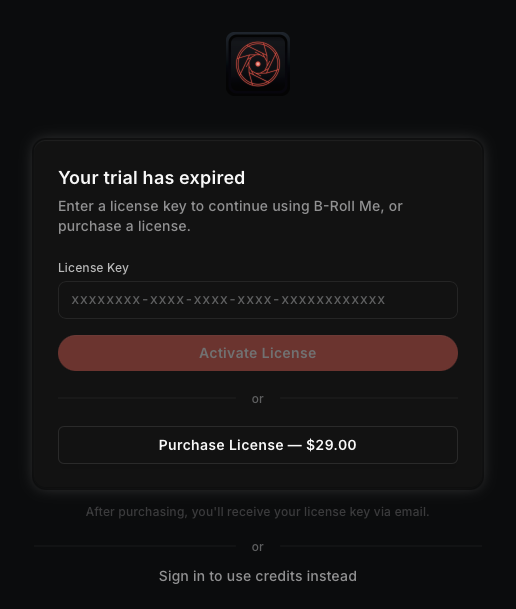
Activate your license or start the 5-day trial, add your AI API key, and select a model. Full control over which AI you use.
Not sure which to pick? Credits mode is the fastest way to try B-Roll Me — no external accounts required. If you already have an API key from Anthropic, OpenAI, Google, or OpenRouter, BYOK mode gives you full flexibility and direct control over costs.
Follow Step 3a for Credits or Step 3b for BYOK below, then continue to Step 4.
3a Getting Started with Credits
Credits mode handles AI provider access for you. Just sign in, buy credits, and analyze — no API keys to configure.
- Open the app — you'll see the Credits / API Keys toggle in the header.
- Click Credits. If you're not signed in, the sign-in view appears.
- Enter your phone number with country code and tap Send Code.
- Enter the 6-digit OTP code you receive via SMS.
- You're signed in! If you have credits, you can start analyzing immediately.
- If you need credits, click the balance badge in the header or go to Settings > Credits.

Learn more about Authentication and Credits.
3b Getting Started with BYOK (Bring Your Own Key)
BYOK mode lets you connect your own AI provider account for full control over model selection and costs.
- Open the app and click API Keys in the header toggle.
- If you don't have a license, the license screen appears — start your 5-day free trial or activate a license key.
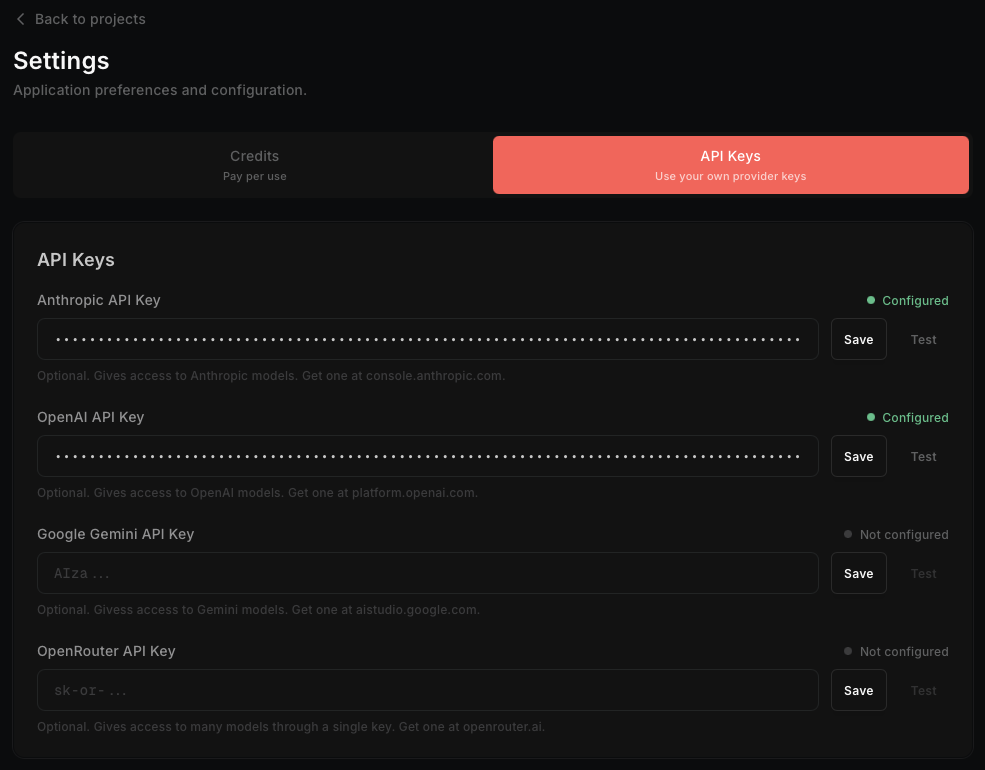
- Go to Settings > API Keys and add your API key for any supported provider:
Anthropic (Claude)
console.anthropic.com
OpenAI (GPT)
platform.openai.com
Google Gemini
aistudio.google.com
OpenRouter
openrouter.ai
- After entering your key, click Test Connection to verify it works.
- Go to Settings > Analysis Preferences and select your default AI model.
- You're ready to analyze!
Learn more about supported providers in AI Providers.
4 Create a Project
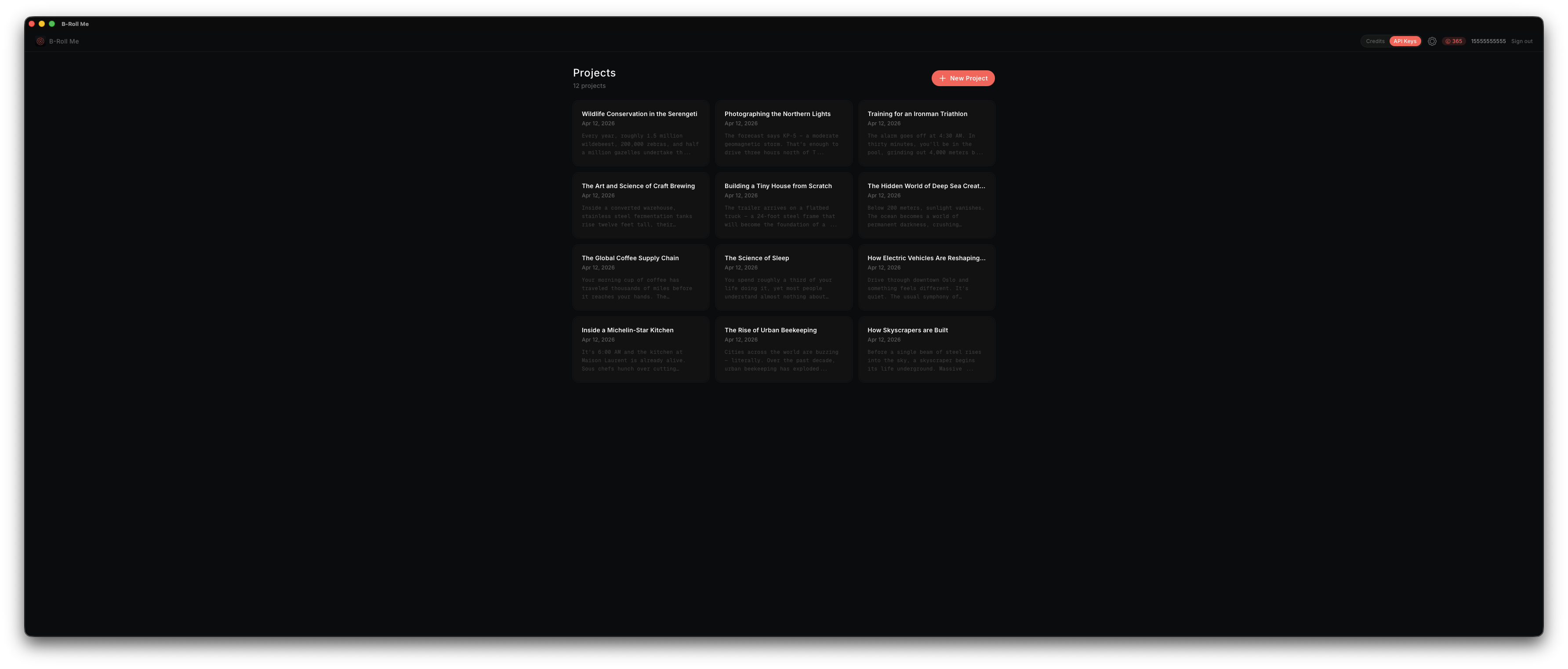
Go to the Dashboard (click the Dashboard link in the sidebar) and click New Project. Give it a name — this is how you'll organize your B-Roll searches by video.
5 Paste Your Script and Analyze
Inside the project, you'll see a large text area. Paste your video script here — it auto-saves as you type.
Before clicking Analyze, choose your B-Roll density (Light, Standard, Dense, or AI's Pick) to control how many moments the AI identifies. Learn more about density settings.
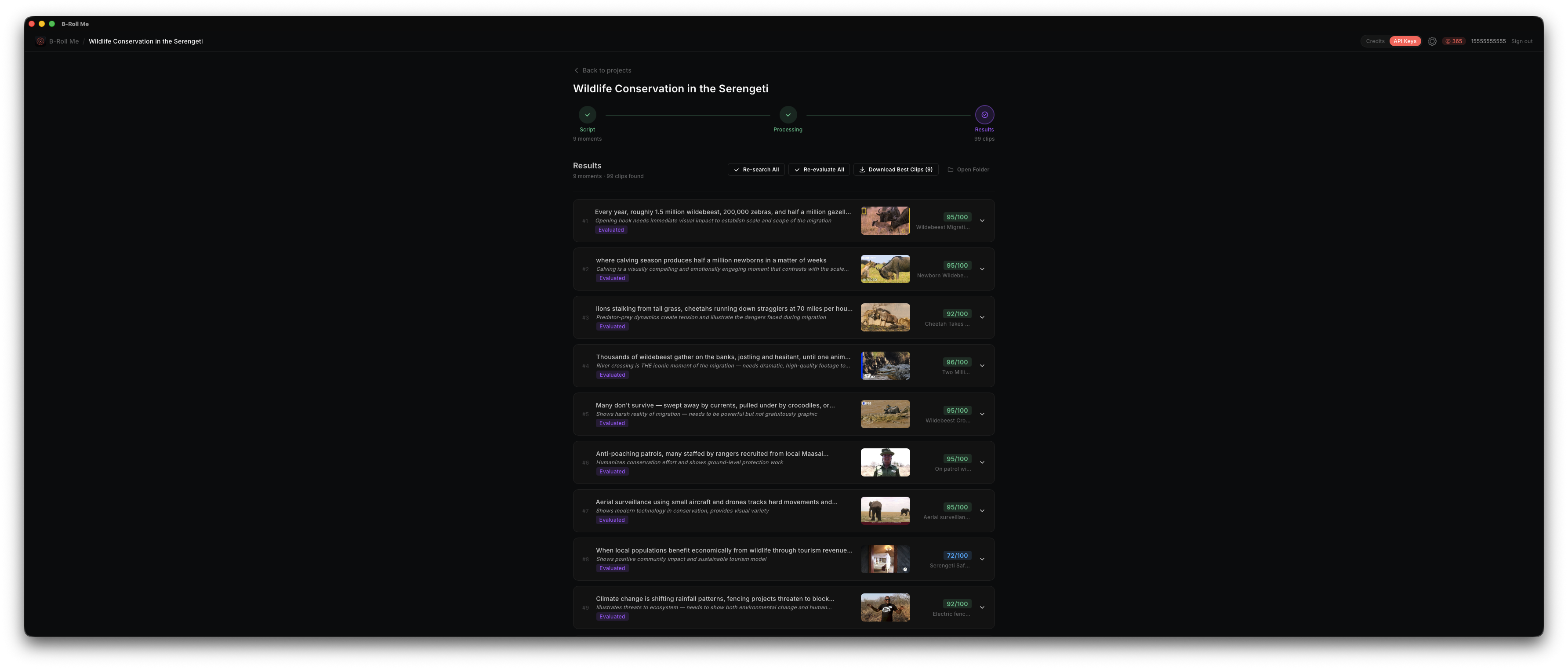
Click Analyze Script to identify B-Roll moments, or Auto-Analyze to run the full pipeline automatically. After processing, you'll land on the Results dashboard where each moment shows its best matching clip with a relevance score.
What's Next
Now that you have your first analysis, continue with the workflow: