Managing Projects
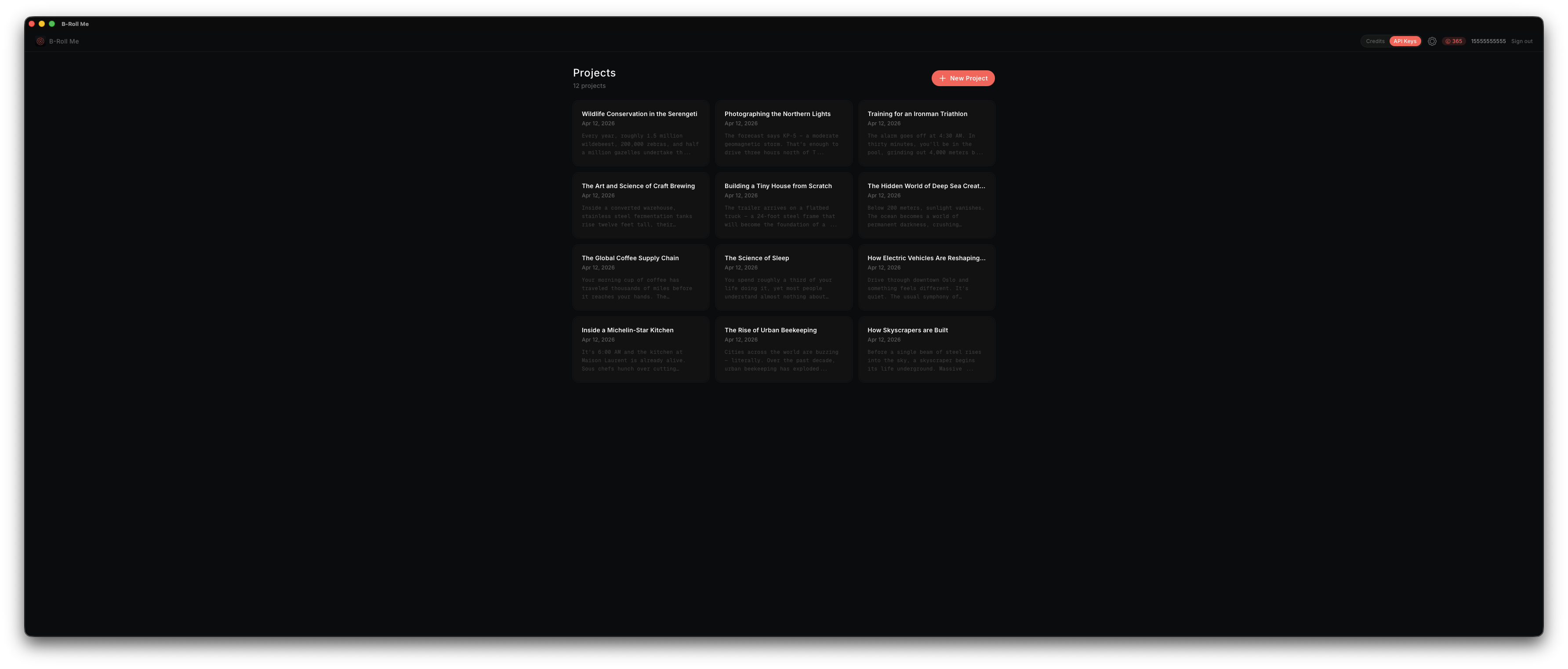
Projects are how you organize your B-Roll work. Each video you're editing gets its own project containing the script, analysis results, search results, evaluations, and downloads.
Creating a Project
From the Dashboard, click New Project. Enter a name for the project — usually the name of the video you're working on. Click Create to open the project workspace.
The Project Workspace
Each project workspace contains:
- • Phase indicator — Shows your progress through the pipeline (Script → Processing → Results). Click any completed phase to navigate back.
- • Script area — Large text area for your video script. Auto-saves as you type.
- • Moment cards — After analysis, each identified B-Roll moment appears as an expandable card.
- • Search results — YouTube results nested within each moment card.
- • Download queue — Panel showing active and completed downloads.
Renaming a Project
Click the project name at the top of the workspace to make it editable. Type a new name and press Enter or click outside the input to save.
Deleting a Project
From the Dashboard, each project card has a delete option. Deleting a project removes all associated data — moments, search results, evaluations, and download records. Downloaded files on disk are not deleted.
Switching Between Projects
Click Dashboard in the sidebar to return to the project list. Click any project card to open it. Each project's state is fully persisted — you'll see everything exactly where you left it.