Settings & Configuration
All settings are accessible from the sidebar by clicking Settings. Changes are saved immediately.
License & Authentication
B-Roll Me requires a valid license to use. When you first launch the app, you start with a 5-day free trial that includes all features — no credit card required.
The license badge at the top of this section shows your current status:
- • Licensed — A valid license key is active on this device.
- • Trial — Free trial is active, with the number of days remaining shown.
- • Expired — Your trial has ended. Activate a license to continue.
- • Invalid — The stored license key could not be validated.
To activate, enter your license key and click Activate. You can also click Purchase License to buy one.
User Mode
At the top of the Settings page, a toggle lets you switch between two modes:
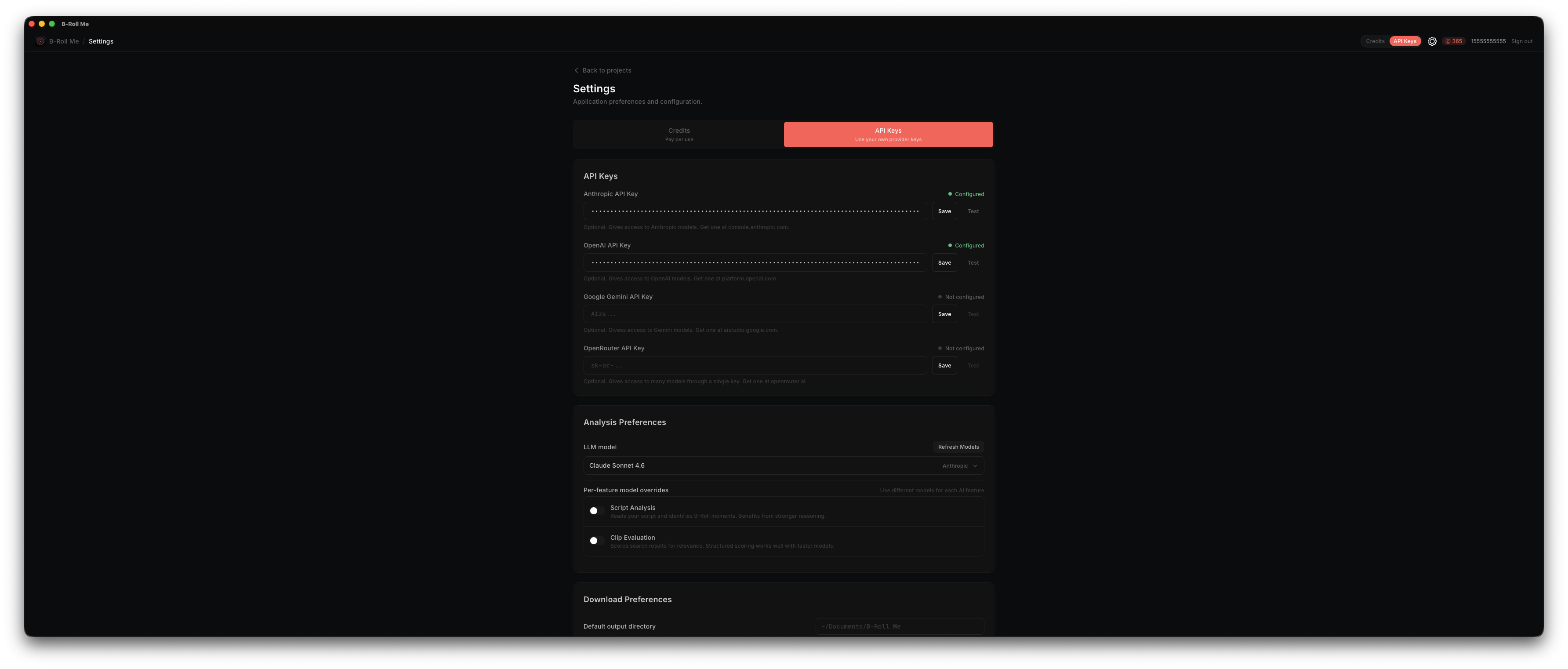
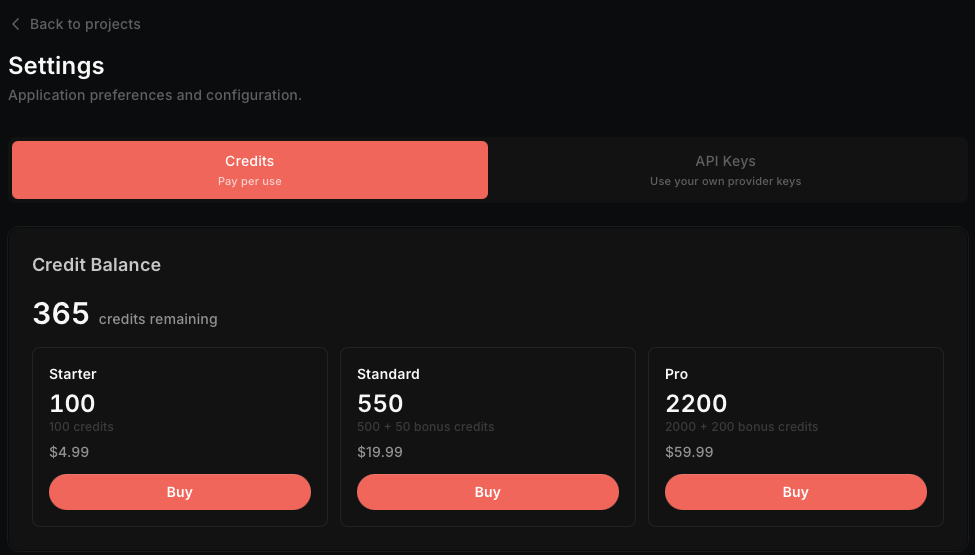
- • Credits — Pay-per-use mode. Sign in with your phone number and purchase credits. The app handles all AI provider routing automatically.
- • API Keys (BYOK) — Bring Your Own Keys mode. Enter your own API keys from providers like Anthropic, OpenAI, Google Gemini, or OpenRouter. You have full control over model selection and configuration.
The sections visible on the Settings page change depending on which mode you select.
See Authentication for more details on sign-in, licensing, and user modes.
Credits
When using Credits mode, the Settings page shows your current credit balance and a Purchase Credits button to buy more. Below the balance, a credit history table shows your recent transactions — purchases, usage, refunds, and adjustments.
If you're not signed in, you'll see a prompt to Sign In with your phone number to get started.

See Credits for details on pricing, usage, and purchasing.
API Keys
API keys are only needed in BYOK (API Keys) mode. If you're using Credits mode, you don't need to configure any API keys — the app routes requests automatically.
Enter API keys for the AI providers you want to use. You need at least one. Each key has a Test Connection button to verify it works before using it for analysis or evaluation.
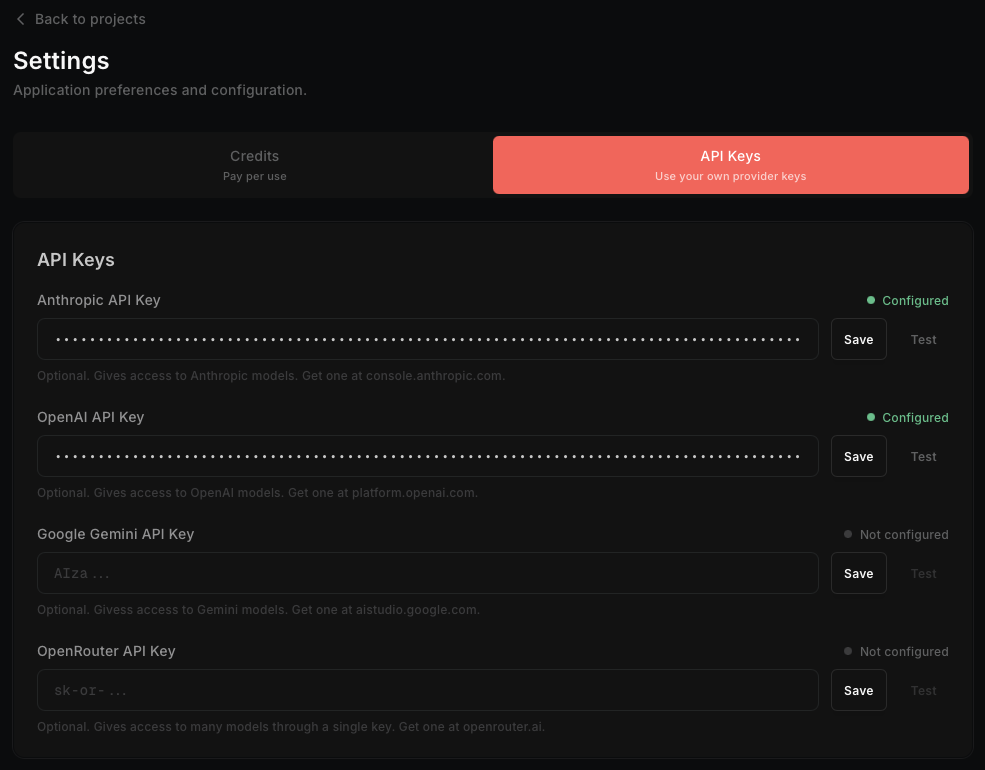
| Provider | Sign Up | Key Format |
|---|---|---|
| Anthropic | console.anthropic.com | sk-ant-... |
| OpenAI | platform.openai.com | sk-... |
| Google Gemini | aistudio.google.com | AIza... |
| OpenRouter | openrouter.ai | sk-or-... |
See AI Providers for more about each provider and supported models.
Download Preferences
- • Output Directory — Where downloaded clips are saved. Default is your Downloads folder.
- • Video Format — MP4 (widely compatible) or WebM (smaller files, open format).
- • Resolution — Best available, 1080p, or 720p.
- • Max Concurrent Downloads — 1 to 5. More concurrent downloads means faster bulk downloads but more bandwidth usage.
Analysis Preferences
These settings are only shown in BYOK (API Keys) mode. In Credits mode, model selection is handled automatically.
- • Default AI Model — The primary model used for all LLM tasks. Shown as a searchable dropdown with all available models from your configured providers.
- • Per-Feature Model Overrides — Optionally use different models for Script Analysis and Clip Evaluation. Useful for cost optimization: use a fast model for analysis and a more capable one for evaluation.
B-Roll density is now configured per-analysis in the project view. See B-Roll Density for details.
Transcription
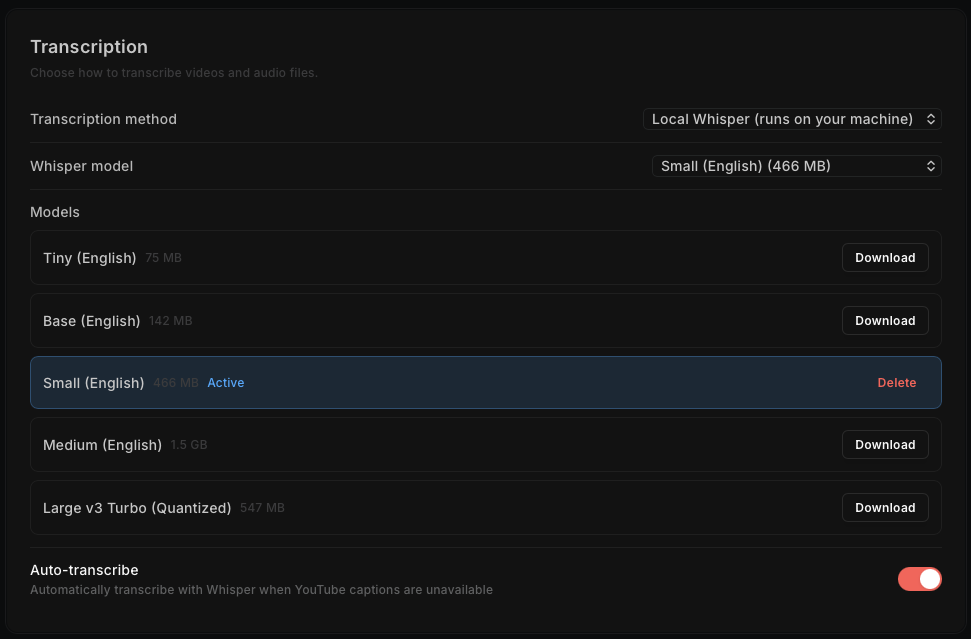
Configure how videos and audio files are transcribed. Choose between two methods:
Local Whisper
Runs OpenAI's Whisper model locally on your machine. No data leaves your computer. You can download and manage models directly from this section:
- • Model selection — Choose from: tiny.en, base.en, small.en, medium.en, and large-v3-turbo-q5_0. Larger models are more accurate but slower and require more disk space.
- • Download / Delete — Each model can be downloaded individually. The active model is highlighted. Delete models you no longer need to free up disk space.
OpenAI Whisper API
Sends audio to OpenAI's cloud-based Whisper API for transcription. Requires an OpenAI API key configured in the API Keys section. Files are converted to MP3 and sent to OpenAI. Maximum file size is 25 MB per file, billed per minute of audio.
Auto-Transcribe
When enabled, the app will automatically use Whisper (via your selected method) to transcribe videos when YouTube captions are unavailable.
See Whisper Transcription for more details on local setup, model comparison, and troubleshooting.
Tools
Shows the installed version of yt-dlp and provides an Update to Latest button to keep it current. Keeping yt-dlp updated ensures compatibility with YouTube changes.
Application
- • Check for Updates — Toggle automatic update checks on startup.
About
Displays the app version, app ID, and framework information. Also includes a Check for Updates button and an Update Now button when updates are available.